After a tabulation has been created and saved, either by yourself or another user, you can open it to read it or to continue working with it.
For details of this functionality in Tabulate Lite (seen by Analysts), see View Existing Tabulations in Tabulate Lite.
Opening a saved tabulation
Open an existing saved tabulation from within Tabulate Pro, from the Content Manager, the Home page, or using the Quick Open menu.
Tabulate Pro
To open an existing tabulation:
- With Tabulate Pro open, go to the Content panel:
- Navigate through the folder structure to locate the tabulation (purple arrow above) you want to open.
- Double-click the tabulation to open it for editing in Tabulate Pro.
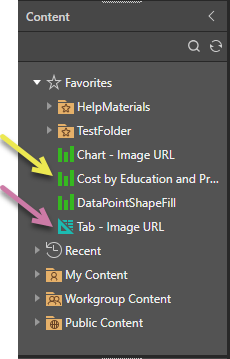
Note: The icons indicate which type each file is. In the preceding example, the yellow arrow indicates a discovery (note the green icon) and the purple arrow indicates a tabulation.
You can either navigate through the folder structure manually or use the Search facility at the top of the panel to search for the tabulation by name.
With the tabulation open in Tabulate Pro, you can make any necessary changes or updates. Once you're done, remember to save your changes.
Home Page or Content Manager
 Your home page is opened from the Home icon in the App Toolbox. It is important to note that this page is highly configurable both by your administrator and by yourself, which means that its content may not include all the tabs or options you see in our examples.
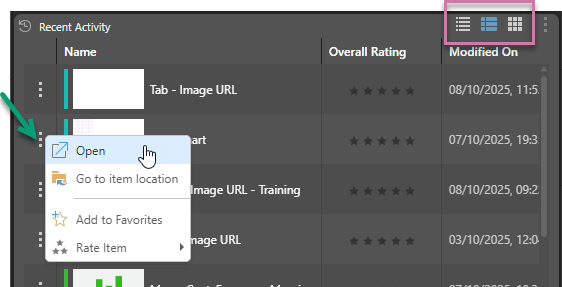
Wherever you see an explorer-style list of content items (from your Home Page or in the Content Explorer), you can open any tabulations as follows:
- Double-click to open the tabulation for editing.
- Click the Ellipsis (...) and select Open from the menu (green arrow).
- If a list view is selected (details or content view), right-click anywhere in the row (snapshot, name, or any other value) and select Open from the context menu.
- If the tile view is selected, right-click anywhere in the name panel and select Open from the context menu.
Tip: You can change the type of view used by a panel using the view options located in the top-right corner of the panel (highlighted in purple).
- Click here for more information about the Home Page
- Click here for more information about the Content Explorer
Quick open from App Tabs
Quick Open (green arrow) offers a fast way to find and open content without leaving the App Tab interface. Click this option to open an explorer-like interface and access files from your private folder (My Content) and any Workgroup or Public folders you have access to. The pop-up also contains a "search by name" facility and lets you open files from Recent and Favorite locations. For more information, see Quick Open.
